Install Safe Exam Browser
Safe Exam Browser (SEB) is required to take your SkillDzire secure exam. Select your operating system below and complete the installation before your exam.
Windows Installation
Follow these simple steps.
Download and open Safe Exam Browser
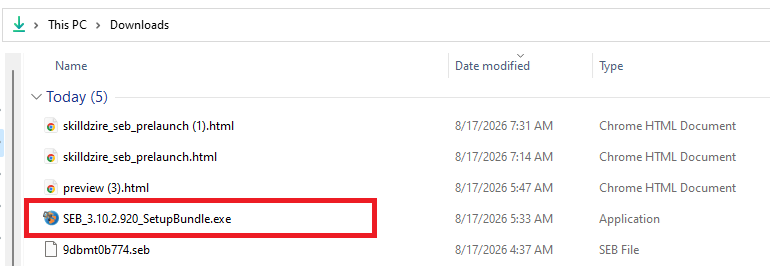
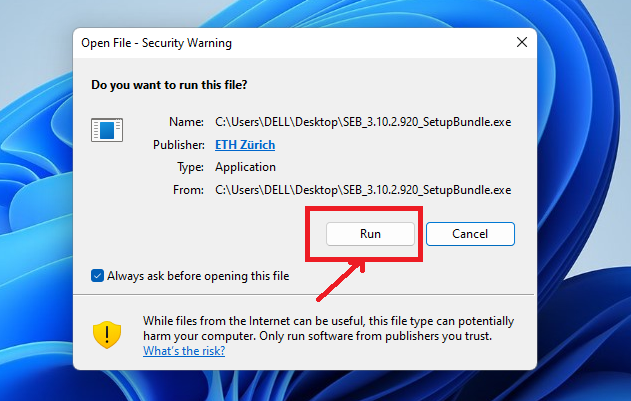
Click Download for Windows above. Open the downloaded SEB .exe file from your Downloads folder. If Windows shows a security prompt, click Run.
Accept the terms and start installation
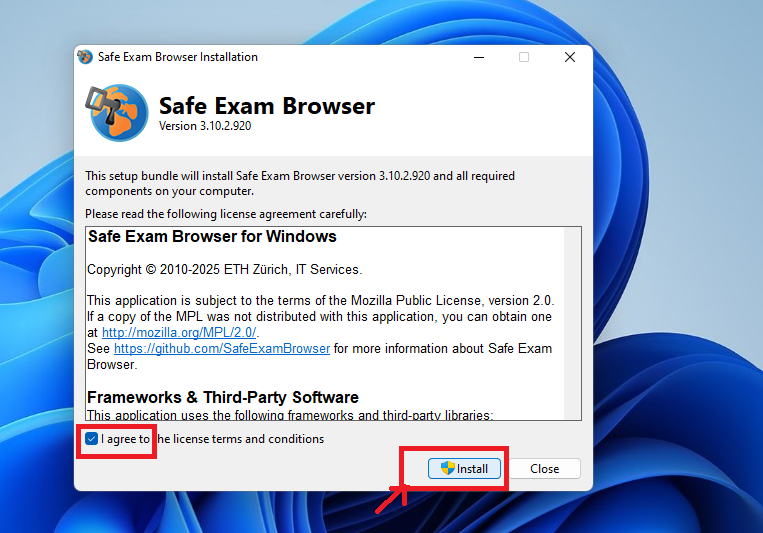
Check I agree to the license terms and conditions, then click Install. Windows may then ask for permission to make changes to your device.
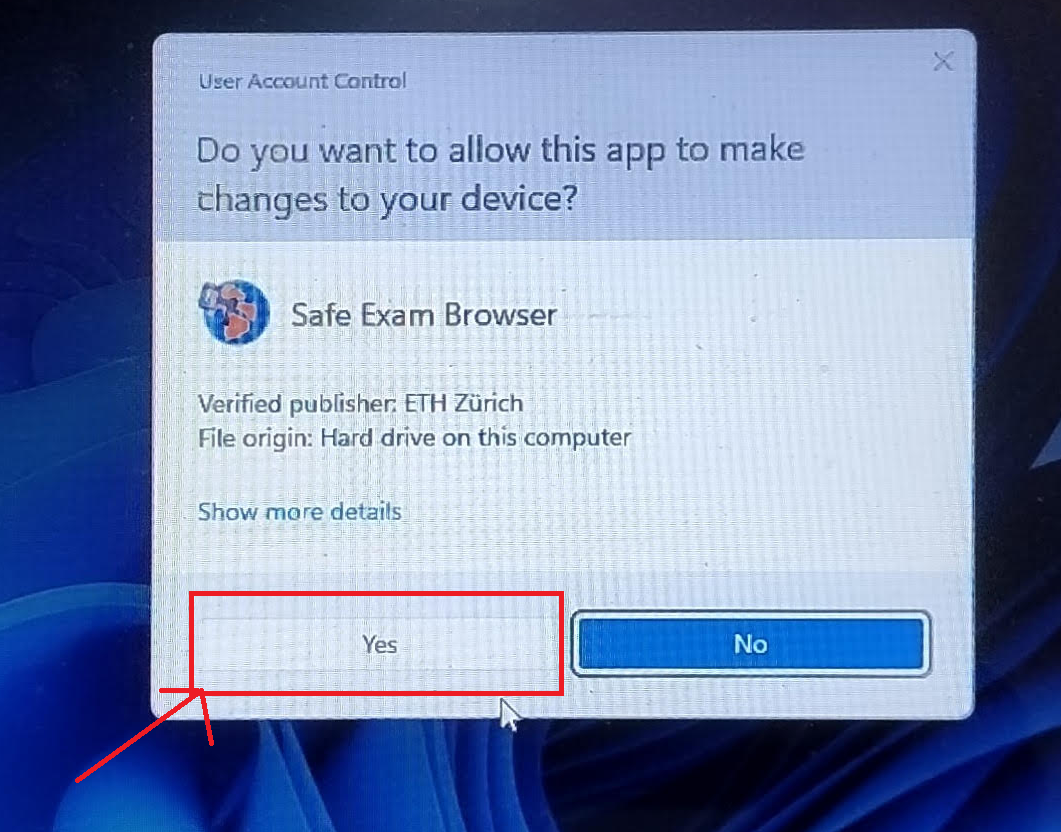
Wait for installation to finish
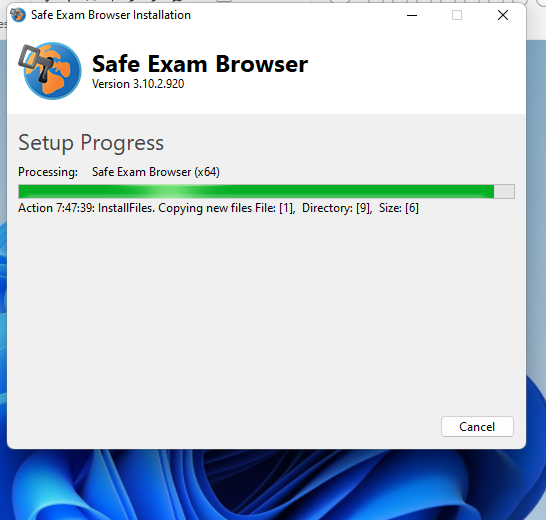
SEB will install on your computer. Wait until the installation is completed successfully.
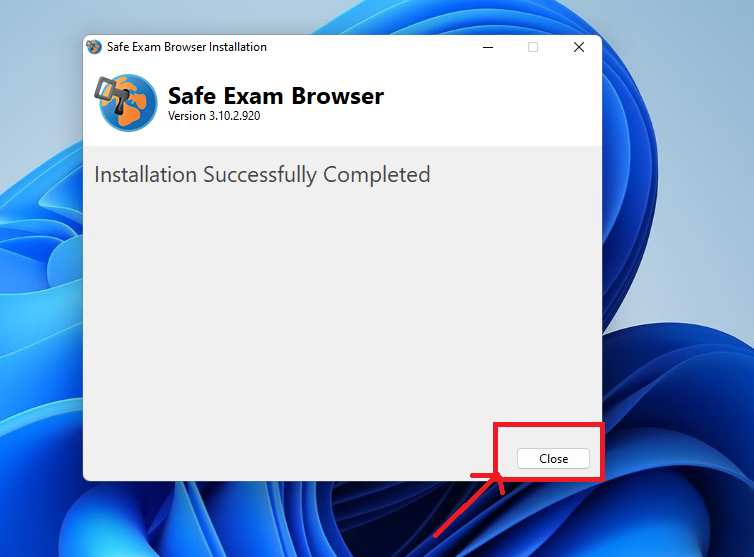
Return to SkillDzire
Once installation is complete, return to your SkillDzire exam page and continue with the exam instructions.
macOS Installation
Mac users can follow the official Safe Exam Browser instructions.
Download the macOS version above, then follow the official Safe Exam Browser macOS user manual for installation instructions.
View macOS Installation Guide →Installation complete?
Return to SkillDzire and follow the instructions to start your secure exam.
Have a question or need help? Contact SkillDzire Support on WhatsApp